Documentation
How to Use SafeOutside
This guide walks you through everything you need to know to get started and stay safe. Before you begin, please read our Disclaimer — SafeOutside is a safety communication aide, not a replacement for emergency services or for direct personal contact.
Contents
- Getting Started
- Creating or Joining a Network
- Planning a Session
- Saying You're Coming
- Choosing What You're Told
- The Dashboard — Your Safety Hub
- Checking In — the RAG Status System
- Sending an SOS Alert
- Reports & Messages
- Weather & Sky Forecast
- Monitoring Mode
- Challenges
- Clubs
- Smartwatch Check-Ins
- Home-Screen Widget
- what3words
- Reporting or Blocking a Member
- Your Data & Export
- Past Sessions & Archive
- Plans & Pricing
- Tips for Safe Use
1. Getting Started
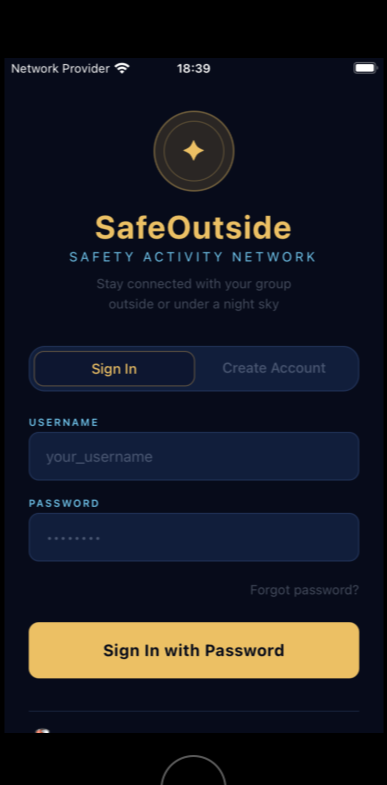
2. Creating or Joining a Network
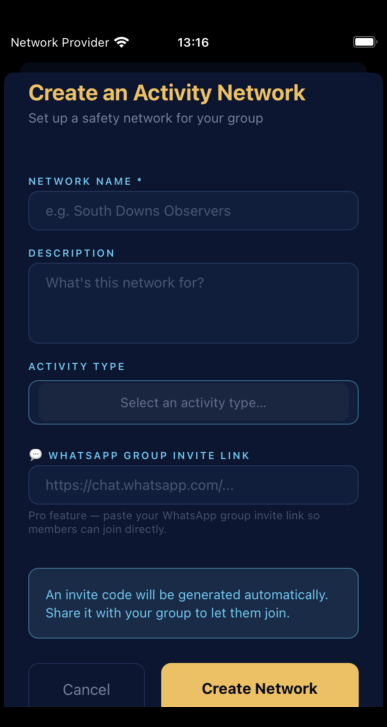
A network is your group of trusted people — the ones who see your check-ins and get your alerts. You can create your own, or join one you've been invited to.
Create a network
How many networks you can create, and how many members each can hold, depends on your plan — see Plans & Pricing. Free members create one network of up to 3, Pro members up to 5 networks of up to 8. You can always join any number of networks you're invited to, whatever your plan.
Invite members
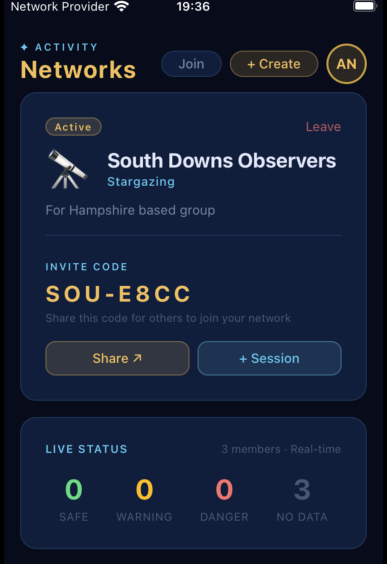
Open your network and tap Share to send its invite link, or read out the invite code. Anyone who opens the link is walked through joining (and signing up, if they're new).
Join an existing network
3. Planning a Session
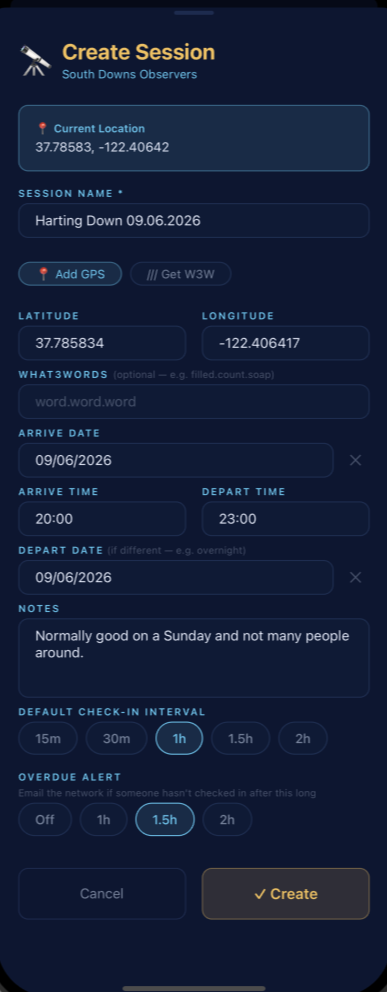
A session is a planned outing with a start time, end time, a check-in interval and optional overdue check-in interval. The app only lets you check in during an active session — so plan your session before you head out.
Starting or ending a session early
If your plans change, any member can start a session early (up to one hour before its scheduled time) by tapping ▶ Start Now on the upcoming session card on the dashboard. To finish early, the person who set up the session taps ■ End Session Early on the active session card.
Saved sessions
Star a session to save it as a template. Tap a saved session and choose New from Template to create a new session pre-filled with the same location, notes and interval and optional overdue — with today's date and next available time filled in automatically.
↑ Back to top4. Saying You're Coming
A session on a shared network is an invitation, not a roll-call. Each session has its own I'm in and Can't make it buttons, so a network of forty people doesn't end up signed up to every outing three of them are on.
If you don't answer, you're not on it. Not answering counts as not taking part — nobody is added to a session automatically.
The one exception: creating a session opts you in, because setting one up commits you to it just as clearly as tapping "I'm in".
What changes when you opt in
- You get that session's check-in reminders and updates
- You appear on the organiser's list of who's coming
- You're asked to turn on alerts, if you never have — you've just said you'll be there, so they're plainly relevant
What changes when you decline
Saying Can't make it silences that session's updates and its overdue alerts. Someone who isn't there isn't a useful responder, so there's no point waking them for a missed check-in.
Declining never silences an SOS. If someone on that session presses the red button, you are alerted — whatever you said about coming, and whatever your notification settings say.
You can't be in two places
If you opt into a session that overlaps one you'd already joined, SafeOutside quietly takes you out of the other and tells you which — with an Undo if that wasn't what you meant. Clubs can run several activities at once, so this keeps your check-ins attached to the one you're actually on.
Sharing a session
The organiser can share an opt-in link for a session — paste it into WhatsApp, a club mailing list or a forum post, and anyone who opens it can say whether they're coming. It's the organiser's to hand out, so a session isn't broadcast by whoever happens to see it first.
Club session invitations
On a club network, saving a session more than two hours ahead emails every club member once with the details and a link into the app. It means an organiser doesn't have to keep a separate mailing list in step with the club's membership. Anything sooner than two hours isn't really a planned outing, so no invitation goes out — tell people directly instead.
↑ Back to top5. Choosing What You're Told
Being in a busy network shouldn't mean a buzzing phone all evening. Each network has its own notification setting, so you can be closely involved in one and keep half an eye on another. Open it from the 🔔 Notifications row on the network card.
● Every session on this network
Everything that happens here. Best for a small group where you want to know about every outing.
● Only sessions I've joined
Updates follow the sessions you've said you're on. You're still told when a session starts, so you can join in if you want to.
● Emergencies only
No routine updates at all. You'll still get an SOS.
If you created a network you start on every session, since it's yours to keep an eye on. If you joined one you start on only sessions I've joined — a new member of a large club should not be handed forty notifications a week before they've worked out what the app does. You can change it whenever you like.
Pausing for a bit
Under Just for now, Pause updates for 2 hours quietens a network temporarily — during a talk, a meal, or a night you're not involved in. It expires by itself, so you can't accidentally leave yourself switched off for a month. It isn't a fourth setting: your standing choice is untouched and comes back automatically.
An SOS always gets through. No notification setting and no pause will ever stop an emergency alert reaching you. Overdue check-in alerts for a session you're on also still arrive.
6. The Dashboard — Your Safety Hub
The Dashboard is the main screen you will use when you are out. It shows:
- Your current check-in status and countdown timer
- Your GPS location and what3words address
- The active session details and any session reports
- A live summary of your network's status
- The single status ring with the RAG check-in buttons and a prominent SOS button
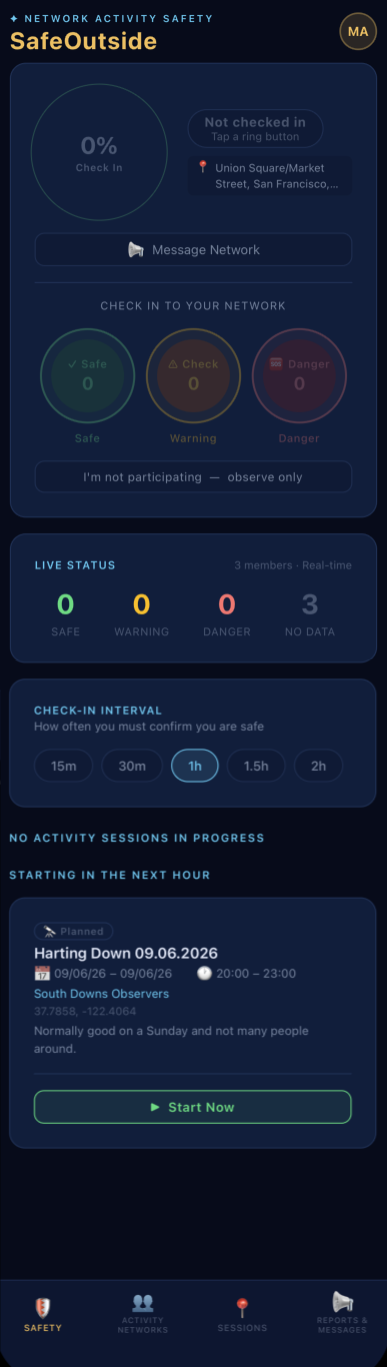
The dashboard also shows sessions starting within the next hour under "Starting in the Next Hour" so you can start early if needed.
Tap 📢 Message Network to quickly send a message or report to everyone in your network without leaving the dashboard.
↑ Back to top7. Checking In — the RAG Status System
During an active session, you check in by tapping one of the three coloured buttons. Your status is broadcast to your network in real time.
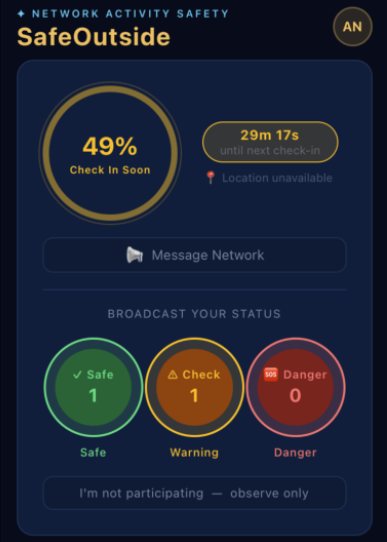
The countdown ring shows how much time is left until your next check-in is due. As the ring empties, your status on your network's screen will automatically escalate from green to amber to red — letting your network know you may need help.
If your timer expires without a check-in, your network is notified and a missed check-in is logged. As soon as you check in green or amber, the timer resets and your network is updated immediately.
Overdue check-in alerts
When planning a session you can switch on an overdue alert and choose how long is too long — for example one hour, 90 minutes, or two hours. If you go past that without checking in, SafeOutside emails everyone in the network so they know to make contact. It's an extra safety net on top of the live status escalation, and it's entirely optional — leave it off if you'd rather not.
Important: Always check in before your timer reaches zero. If you know you will be out of signal, check in green just before you lose connectivity so your network knows you are safe going in.
8. Sending an SOS Alert
Only press the red button if you are in genuine danger or require emergency assistance. It immediately alerts your entire network.
When you tap the red Danger button and confirm, SafeOutside instantly sends an alert to every member of your network containing:
- Your name and the time the alert was sent
- Your GPS coordinates and what3words address
- A link to your location on Google Maps
- Your session details (name, planned times, notes)
- Recent session reports
Alerts are sent by push notification, email, WhatsApp (if the network has a group link), and Discord (if a webhook is configured).
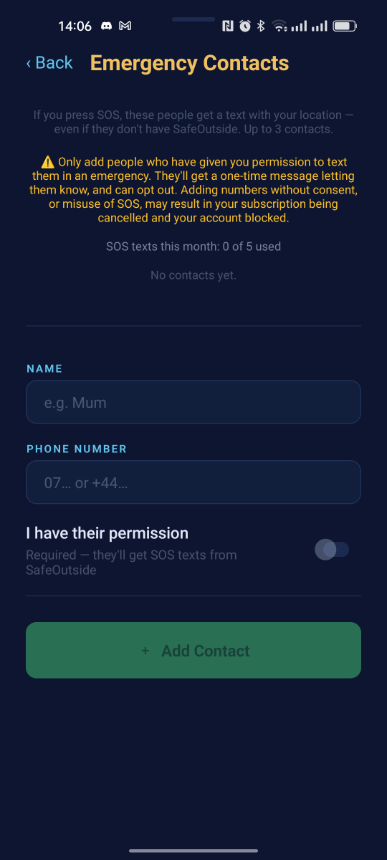
Emergency contacts & SOS texts Pro
Pro members can add trusted emergency contacts — people who don't need the app at all. When you send an SOS, they receive a text message with your location, so help can reach you even if your contact isn't a network member. Add or manage them from the Emergency Contacts screen in the Account menu. Anyone you add gets a one-off text explaining who added them, with a link to remove themselves if it wasn't meant for them, and you can see how many SOS texts you've used this month.
Man-down auto-SOS Pro
Man-down is an automatic safety net. During a session, if you go overdue and your phone stops moving, SafeOutside shows an "Are you OK?" countdown — and if you don't respond, it sends an SOS on your behalf. Turn it on from Man-down Auto-SOS in the Account menu. It's a beta feature and works best as a backup, not a primary alarm.
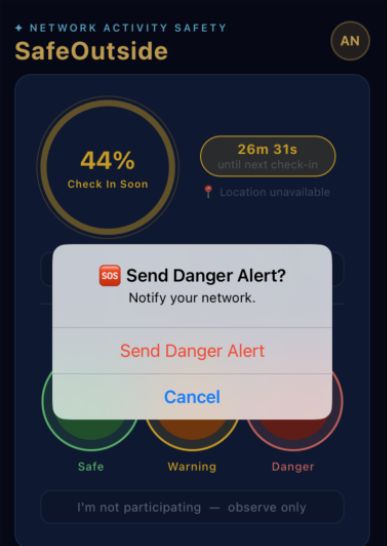
After you've sent one
SafeOutside tells you how many people it actually reached, so you are not left guessing — and says plainly if nobody could be reached, which is the moment to phone someone.
Share alert then passes the same message and your location to anyone else: WhatsApp, Messages, Signal, or Copy to paste wherever you need. Use it to reach a partner, a landowner or a site warden who isn't in your network.
If you press the button again within a few minutes it won't re-text your emergency contacts — your network is updated, but your contacts aren't sent the same alert twice.
Remember: SafeOutside is not the emergency services. Always call 999 (UK) or 911 (US) first if you are in immediate danger. See our Disclaimer. The app is an aide — if you are worried, call someone directly.
9. Reports & Messages
Use the Reports & Messages tab (or the 📢 Message Network button on the dashboard) to post updates to your network during a session.
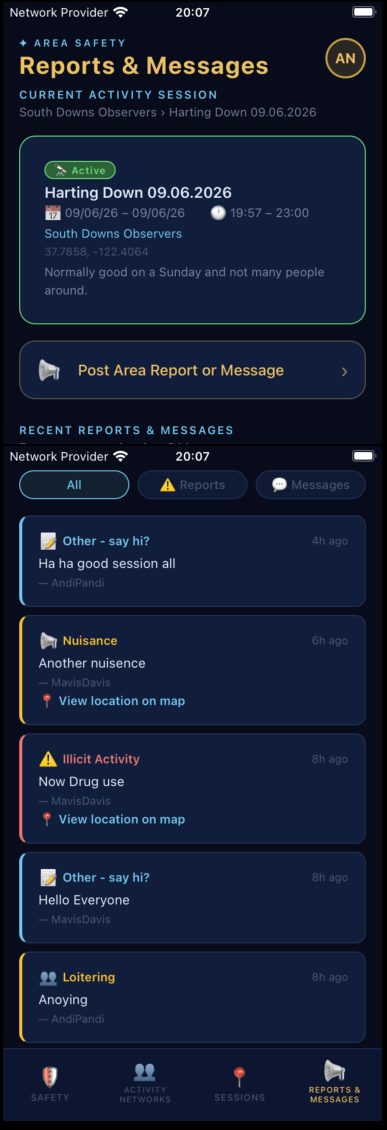
Posting also updates your check-in. A general message marks you as OK, while a hazard or incident report raises your own status to match — so if you flag illicit activity nearby, your group can see at a glance that you may be affected.
Reports are attached to the active session and remain visible for 24 hours. Filter between ⚠️ Reports and 💬 Messages using the tabs at the top of the list. If your active session has unread reports or messages, an alert badge appears on the session card on your dashboard — tap it to jump straight to the filtered view.
Everything posted during a session — every message, report and SOS alert — is gathered into the session report email your network receives when the session ends, so there's a complete record of the outing.
↑ Back to top10. Weather & Sky Forecast Pro
Pro members get a weather and sky forecast for their session's location, so you can plan around the conditions before you head out. It's tuned to your activity: general outings show cloud, rain and wind, while stargazing sessions also show sky clarity and moonlight so you know how good the viewing will be.
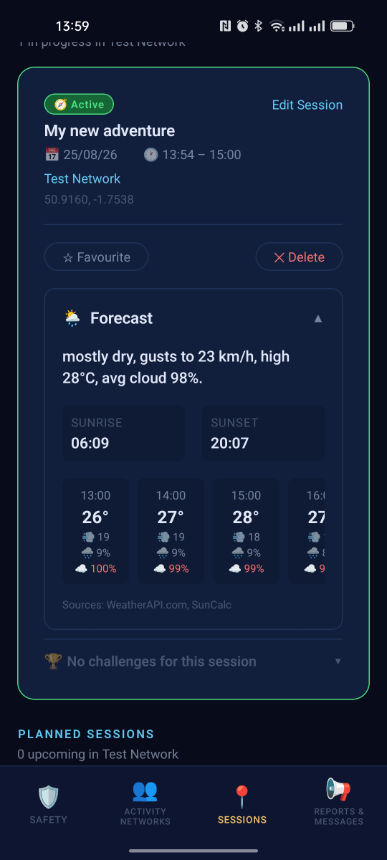
The forecast appears on your session once a location is set. If you're not on Pro, you'll see a preview and a prompt to upgrade.
↑ Back to top11. Monitoring Mode
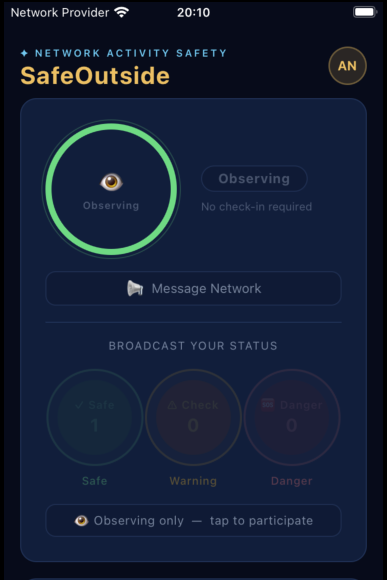
If you want to monitor your network without taking part yourself — for example, you are the base camp coordinator, a remote support contact, or simply watching tonight's outing from home — enable Monitoring Mode.
Tap the eye icon on the dashboard to switch to monitoring only. While monitoring:
- You can see the full network status in real time
- You will not be prompted to check in
- You appear as "Monitoring" to other network members
- Your monitoring status is remembered per network
12. Challenges Pro
Challenges add a bit of purpose and fun to an outing — a shared checklist of things to spot, reach or achieve during a session. Think "find five Messier objects", "reach the summit", or "log three wildlife sightings".
The session card shows how many challenges are set and how many you've completed (e.g. 1 of 3 complete). Pro and Lifetime members can create, edit, favourite and delete their own challenges.
↑ Back to top13. Clubs
A club is a group — an astronomy society, a walking group, a running club — whose membership gives every member Pro features at no cost to them. The club holds the subscription; members simply join.
Joining a club
Your club organiser will send you a club link. Open it, sign up or sign in, and you're in: Pro features switch on straight away, including SOS texts to emergency contacts and man-down auto-SOS. There's nothing to pay and nothing to enter.
If you look at Manage subscription in your account menu, it will tell you your Pro comes from your club rather than showing you a bill — there's nothing there for you to cancel.
Club networks
A network belonging to a club is marked with the club's name. Club networks behave differently from a network you set up yourself:
- Planned sessions email the whole club (see Saying You're Coming)
- The club can run several sessions at the same time — two observing sites on the same night, say — each with its own roster
A network you create for yourself is always a private one, even if you name it after your club. If you want a club network, ask your organiser.
For club organisers
Organisers manage their club at safeoutside.co.uk/admin: the plan and renewal date, how many seats are used, the join link, members, and billing. Everything to do with paying for the club lives there rather than in the app.
If a club subscription ends, its members lose the Pro features it was providing — including SOS texts and man-down auto-SOS. Organisers are warned about this before cancelling, and members keep anything they've bought themselves.
14. Smartwatch Check-Ins Early access
For the quickest possible check-in, pair a Wear OS smartwatch with SafeOutside. Glance at your wrist, tap once, and you're checked in — no need to take your phone out.
The watch shows your current session, a live countdown ring, and the same RAG check-in buttons as the app. It's an early release — we'd love your feedback.
↑ Back to top15. Home-Screen Widget Android
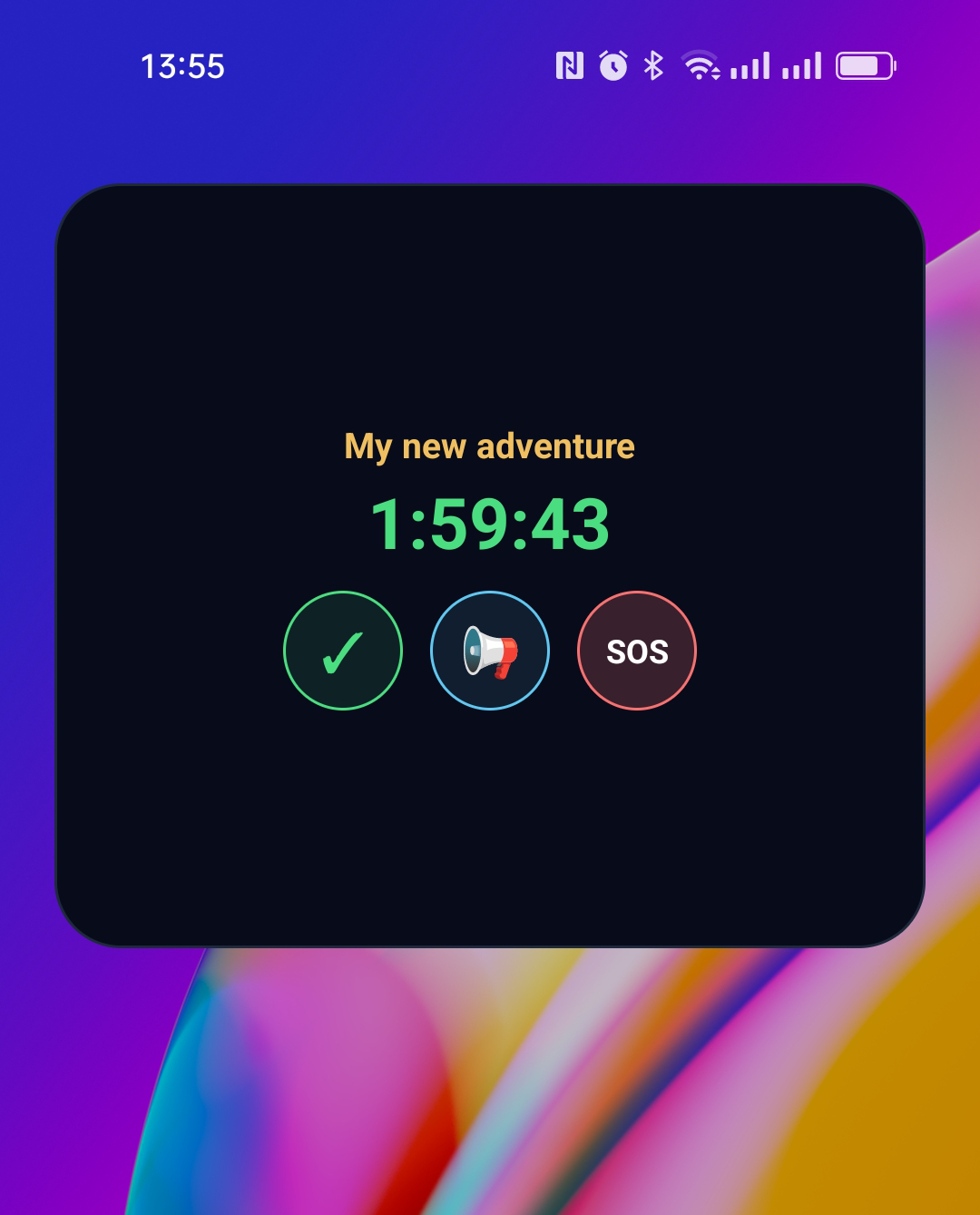
Add the SafeOutside home-screen widget for one-tap safety without opening the app. Long-press your home screen, choose Widgets, find SafeOutside and drop it in place.
- Check in, or send a report or SOS, in one tap
- See your session countdown at a glance
- A "New messages" note appears when there are unread reports
16. what3words
what3words divides the world into 3 metre squares, each with a unique three-word address. SafeOutside uses what3words to give your check-in location a precise, human-readable address that is easy to communicate over the phone or radio.
When you create a session you have the option to go to the what3words website and get the unique address that lets people know where the session starts. All check-ins record GPS coordinates (longitude and latitude).
↑ Back to top17. Reporting or Blocking a Member
Everyone deserves to feel safe in their network. If someone behaves inappropriately, you can report or block them.
- Report — send a confidential report to the SafeOutside team, choosing a reason (for example harassment or a child-safety concern) and adding any details.
- Block — stop sharing a network with someone. Once blocked, you and they can't be in the same network.
You'll find these options on a member's entry in your network. SafeOutside is an adults-only (18+) service — please read our Safeguarding policy for how we keep the community safe.
↑ Back to top18. Your Data & Export Plus Pro
You're in control of your data. Plus and Pro members can export a copy of everything — your networks, sessions, check-ins, reports and more. Request it from the Account menu and we'll email you a secure, one-time download link.
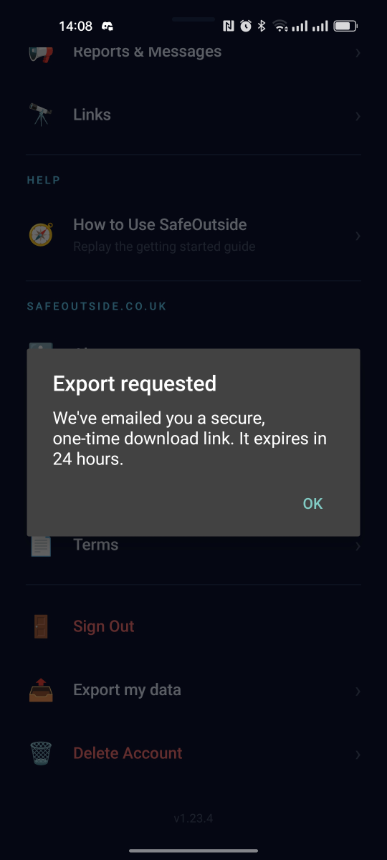
You can also permanently delete your account and all of your data at any time from Account settings. See our Privacy policy for the full picture.
↑ Back to top19. Past Sessions & Archive
Once a session's end time has passed it moves to your Past Sessions archive — open it from the Account menu (or the Archive link in the web app). From there you can:
- Review old outings and their details
- Re-save a session you removed from your favourites by mistake
- Permanently delete a session you no longer need
Deleting a session removes all of its data — check-ins, reports, messages and challenge progress — but never affects your network or its members. You'll always be asked to confirm first, and deletions are kept recoverable for a short period in case you change your mind.
↑ Back to top20. Plans & Pricing
SafeOutside's core safety features are free forever. Plus and Pro unlock bigger groups and extra tools. Subscriptions are billed through the App Store or Google Play, and you can cancel any time.
| Plan | Price | What you get |
|---|---|---|
| Free | £0 | 1 network of up to 3 members · sessions & check-ins · RAG status & SOS · reports & messages · what3words |
| Plus | £2.99/mo £29.99/yr |
Everything in Free, plus a bigger network (up to 5 members) and data export |
| Pro | £4.99/mo £39.99/yr |
Up to 5 networks of up to 8 members · weather & sky forecast · emergency SOS texts · man-down auto-SOS · create your own challenges · WhatsApp group link · data export |
| Lifetime | £89.99 once | Everything in Pro, forever — a single one-off payment, no subscription |
You can upgrade from the paywall in the app (tap ⭐ Upgrade). Prices are set in the stores and shown in your local currency at checkout.
↑ Back to topManaging your subscription
Open Manage subscription from your account menu. Where it takes you depends on how you got your Pro features:
- Bought in the app — it opens the App Store or Google Play subscription screen, the only place a store purchase can be changed or cancelled
- Provided by your club — it tells you which club, because there's nothing for you to pay or cancel
- Given to you by us — it says so, and there's nothing to manage
Club organisers manage the club's own plan and billing on the website, not in the app.
↑ Back to top21. Tips for Safe Use
- Plan your session before you leave — the app must have an active session to accept check-ins.
- Set a realistic check-in interval — shorter intervals give your network more confidence but require more attention from you. 30–60 minutes is a common choice.
- Check in before you lose signal — if you know you are heading into a dead zone, check in green just beforehand.
- Tell someone your plans — the app is not a substitute for letting a trusted person know where you are going and when you expect to be back.
- Keep your phone charged — carry a power bank on longer outings.
- Do not rely solely on the app — carry a PLB or satellite communicator for serious remote expeditions.
- If in doubt, call — if you are worried about someone, phone them directly. The app is an aide, not a replacement for direct contact. See our Disclaimer.
In an emergency always call 999 (UK) or 911 (US) first. SafeOutside does not connect you to emergency services. Please read our full Disclaimer before using the app.